
CSV Import — Any Bank, Any Format
Overview
Section titled “Overview”The Import page lets you upload CSV transaction exports from your bank or credit card. Acclo IQ parses the file, detects duplicates, auto-categorizes transactions using the rule engine, and adds them to your database.
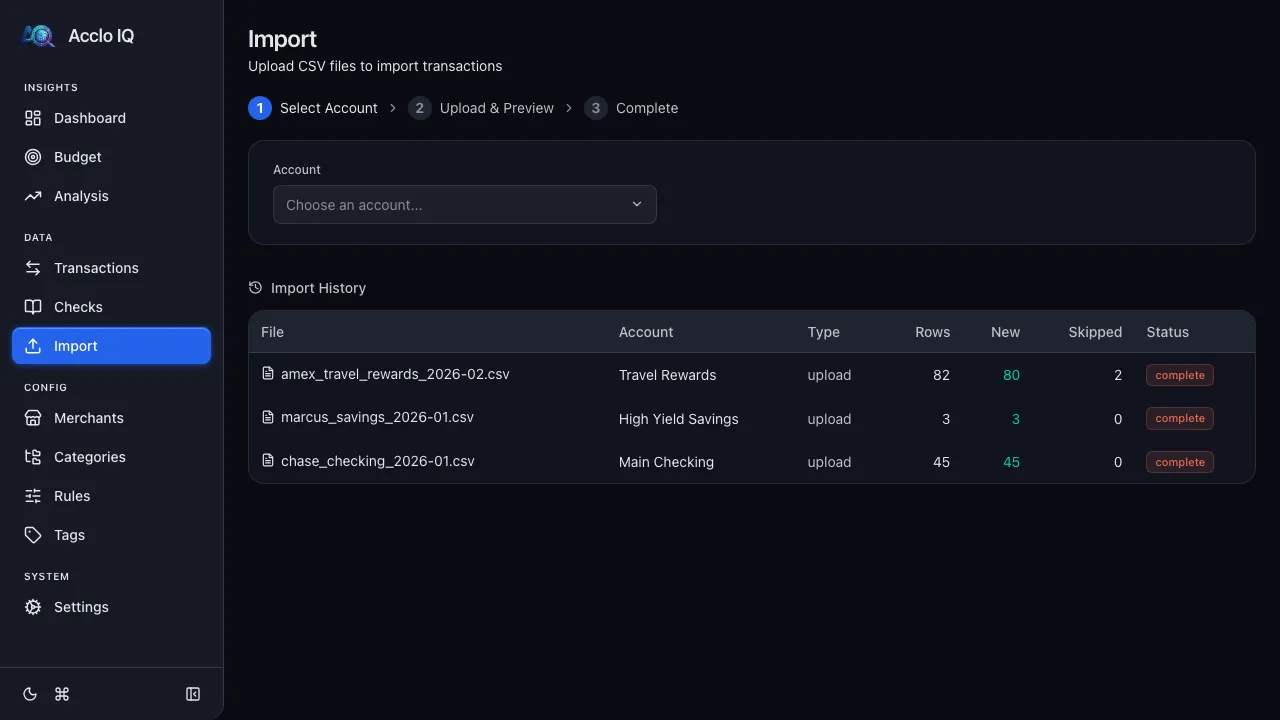
Import Flow
Section titled “Import Flow”The import wizard follows three steps shown at the top of the page.
Step 1: Select Account
Section titled “Step 1: Select Account”- Choose the target Account from the dropdown (lists all your accounts)
- Select the CSV Format Profile that matches your bank’s export format
The format profile tells Acclo IQ how to read your bank’s CSV structure — which columns are the date, amount, description, etc. If your account’s institution matches a built-in profile, it may be auto-selected.
If no profile matches your bank, click Create a new format profile to build one:
- Upload a sample CSV file — the app auto-detects columns, date format, and encoding
- Review and adjust the column mapping (assign Date, Amount, Description, and optionally Memo)
- Set the date format and amount sign convention
- Name the profile and click Create Profile
See the Format Profiles guide for details on custom profiles.
Step 2: Upload and Preview
Section titled “Step 2: Upload and Preview”Once account and format profile are selected, a file drop zone appears:
- Drag a CSV file onto the drop zone, or click to browse
- The app parses the file and shows a preview with stats:
- Total Rows — every data row in the file, including any that couldn’t be read
- Date Range — span of transaction dates
- Duplicates — transactions already in your database (skipped automatically)
- Cross-source — potential duplicates from a different source (e.g., Bank Sync)
- Couldn’t read — rows that couldn’t be read and won’t be imported (shown only when there are any)
- New — transactions that will be imported
- If any rows couldn’t be read, a warning above the preview table lists them by row number with the reason: “amount isn’t a number”, “date isn’t recognized”, “missing date or description”, or “too few columns”. Fix those rows in the CSV and import it again. Rows already imported are skipped as duplicates.
- The preview table shows each row with a status badge: New (green), Duplicate (red), or Cross-source dupe (orange)
- Review the preview, then click Import N Transactions to confirm
Step 3: Complete
Section titled “Step 3: Complete”After import, a success screen shows:
- New — transactions added
- Skipped — duplicates that were not imported
- Uncategorized — transactions the rule engine could not categorize
- Couldn’t read — rows that couldn’t be read and weren’t imported (shown only when there are any)
Click Import Another to start a new import.
Deduplication
Section titled “Deduplication”Acclo IQ automatically detects duplicates during import:
- Exact duplicates — same date, amount, and description in the same account are skipped
- Cross-source duplicates — same transaction from both CSV and Bank Sync are flagged for review
Duplicates are never imported twice. The preview shows which rows will be skipped.
Auto-Categorization
Section titled “Auto-Categorization”Every new transaction is run through the rule engine during import. Rules match the transaction description against regex patterns and assign a merchant, category, and subcategory automatically.
Transactions that don’t match any rule appear as “Uncategorized” — you can categorize them manually on the Transactions page and create rules for future imports.
Import History
Section titled “Import History”Below the wizard, the Import History table shows all past imports with:
| Column | Description |
|---|---|
| File | Original filename |
| Account | Target account |
| Type | “upload” (CSV) or “register” (check register) |
| Rows | Total rows in file |
| New | Transactions added (green if > 0) |
| Skipped | Duplicates skipped |
| Couldn’t read | Rows that couldn’t be read and weren’t imported |
| Status | complete, cancelled, or error |
- Export your bank’s CSV regularly (monthly or weekly) — deduplication ensures no double-counting
- If transactions appear uncategorized, visit the Rules Engine page to add patterns
- The app supports multiple format profiles for different banks — create one per bank
Related Guides
Section titled “Related Guides”- Format Profiles — create and manage CSV format profiles
- Rules Engine — auto-categorize imported transactions
- Transactions — view and manage imported transactions
- Bank Sync — automatic import via SimpleFIN Bridge