
Cloud Sync — Encrypted Multi-Device
Overview
Section titled “Overview”Cloud Sync keeps your Acclo IQ data in sync across multiple devices using your own cloud storage provider. Data is end-to-end encrypted before leaving your device, and Acclo IQ cannot read your synced data. Cloud Sync is a Pro feature.
How It Works
Section titled “How It Works”Cloud Sync uses encrypted deltas and snapshots stored in a hidden app folder in your cloud account.
- Local changes are collected into small encrypted delta files and uploaded
- Remote changes from other devices are downloaded, decrypted, and merged into your local database
- Conflict resolution automatically keeps the most recent edit if two devices change the same record
- Periodic snapshots compact delta files into a single snapshot to keep storage usage manageable
Sync triggers automatically on app open, tab focus (if enough time has elapsed), and after local edits (2-second debounce). Background polling uses an adaptive interval: 15 minutes when other devices are actively syncing, 30 minutes when peer devices are inactive, and 60 minutes when only one device is connected (since no remote changes are possible). You can also trigger a manual sync from the Backup tab.
Setting Up Cloud Sync
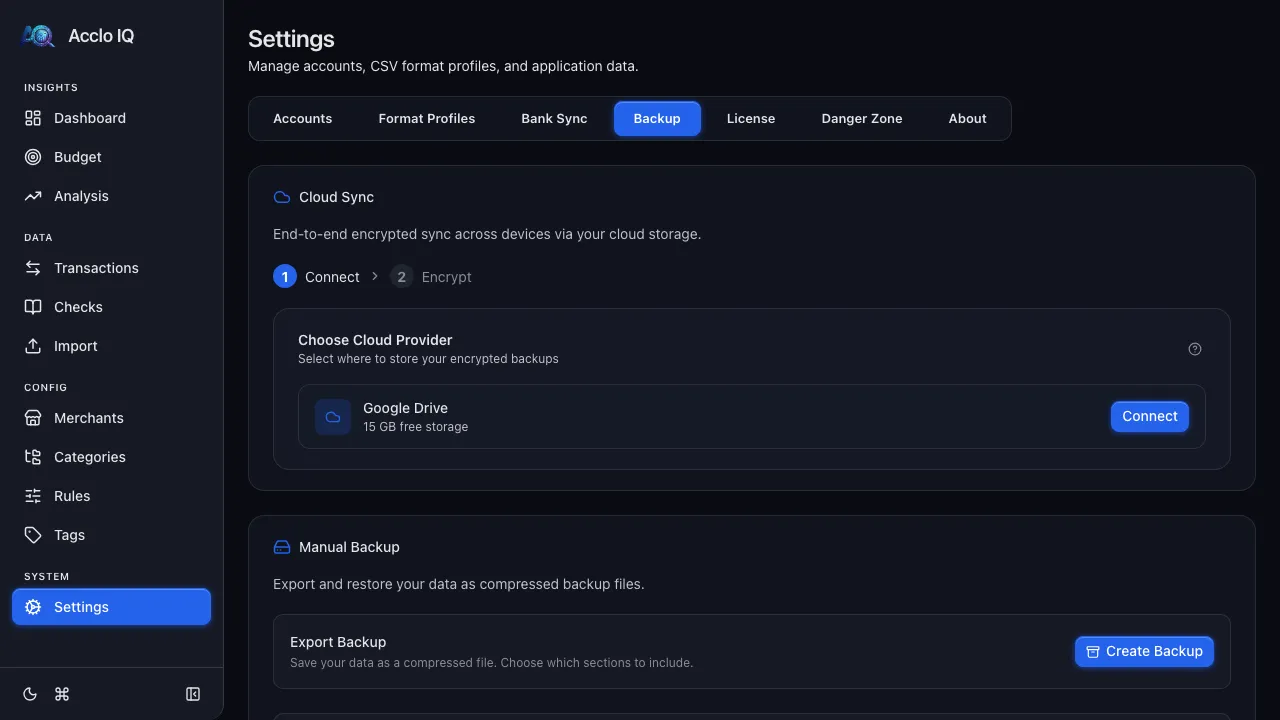
Section titled “Setting Up Cloud Sync”- Go to Settings > Backup
- Under Choose Cloud Provider, click Connect next to your provider (currently Google Drive)
- Complete the OAuth sign-in popup to authorize Acclo IQ
- If another device has already set up sync, the app auto-detects the existing vault and asks you to enter the sync password. Otherwise, you create a new sync password
- Set a sync password — this encrypts your cloud data before upload. Keep it safe; without it, cloud data cannot be recovered
- Sync starts automatically after setup
To add a second device, install Acclo IQ, go to Settings > Backup, connect the same cloud provider, and enter the same sync password. The device will download and restore your synced data.
Managing Cloud Sync
Section titled “Managing Cloud Sync”Once set up, the Backup tab shows three status cards: Cloud Provider (with an on/off toggle), Last Sync time (click to trigger manual sync), and Storage usage.
Click the Manage button to open a modal with these options:
- Sync Password — change the password that encrypts your cloud vault
- Disconnect — stop syncing to the cloud provider (existing cloud data is preserved)
- Reset Cloud Vault — delete all encrypted cloud data and start fresh (your local data is safe)
Offline and Stale Device Recovery
Section titled “Offline and Stale Device Recovery”Cloud Sync is offline-first — changes accumulate locally when you’re offline and sync when you reconnect.
If a device has been offline for an extended period (longer than the snapshot compaction cycle), it’s considered “stale.” On reconnect, the device automatically downloads the latest snapshot and any subsequent deltas to catch up. Deletions made while the device was offline are correctly propagated through the snapshot — deleted records won’t reappear.
Current Capacity Limits
Section titled “Current Capacity Limits”Each Cloud Sync data file can contain up to 16 MiB (16,777,216 bytes) before encryption. This is a per-file limit, not a limit on your local database or a fixed number of transactions, and it is separate from your Google Drive storage allowance. The amount of data that fits varies with the details stored in each record.
Receipt attachments are stored separately and can be up to 10 MB each.
If Cloud Sync reaches a limit, your local data remains available. Acclo IQ shows a message under Settings > Backup explaining whether recent changes were uploaded and what to do next. Create a manual backup while Cloud Sync needs attention.
Troubleshooting
Section titled “Troubleshooting”Reset and Resync
Section titled “Reset and Resync”If you experience sync issues (unexpected data, conflicts, or errors), you can perform a clean reset:
- On the device with the correct data: Go to Settings > Backup, click Manage, then click Reset next to “Reset Cloud Vault.” This deletes all cloud sync files. Then re-enable sync — your local data will be uploaded fresh
- On other devices: When the device detects the vault was reset, it shows an alert with two options: Re-upload My Data (overwrite the cloud with this device’s data) or Set Up Fresh (wipe local data and pull from cloud). Choose “Set Up Fresh” to pull the clean data from the first device
Common Issues
Section titled “Common Issues”- “Incorrect sync password” — The password must match exactly what was set on the first device. Passwords are case-sensitive
- Sync seems slow — Large initial syncs (many transactions, receipts) take longer. Subsequent syncs are incremental and fast
- Storage usage growing — Snapshots are compacted automatically. If storage is a concern, a vault reset (above) provides a clean start
Next Step
Section titled “Next Step”Cloud Sync is a Pro feature. Compare what each tier includes:
Compare Free and ProRelated Guides
Section titled “Related Guides”- Licensing — Cloud Sync requires a Pro license
- Privacy Architecture — encryption details and data handling
- Backup & Restore — local backup and restore (separate from Cloud Sync)