
Settings — Accounts, Profiles & Preferences
Overview
Section titled “Overview”The Settings page contains seven tabs for configuring Acclo IQ. Each tab manages a different aspect of the application.
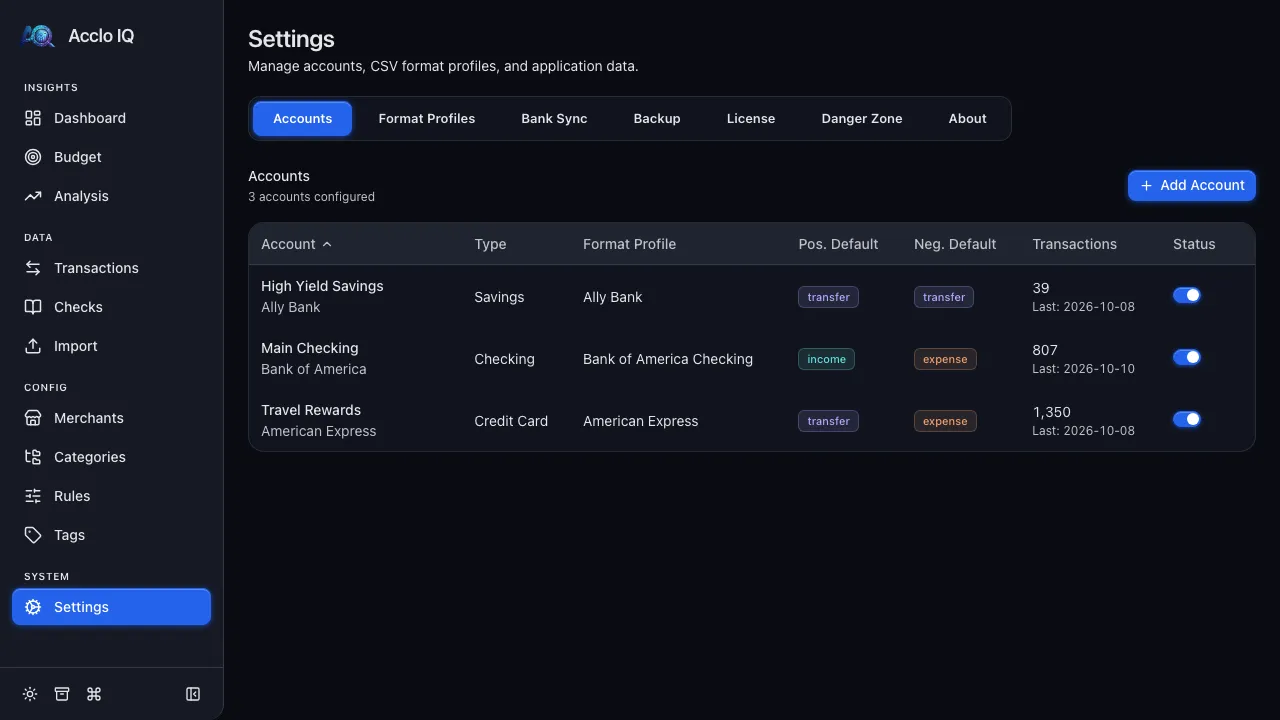
Accounts
Section titled “Accounts”Manage your bank and credit card accounts. See the Onboarding guide for creating your first account.
- Add Account — create a new account with name, institution, and type
- Edit — change account name, institution, type, format profile, or flow defaults
- Status toggle — deactivate accounts to hide them from import and check register dropdowns (data is preserved)
- Delete — permanently remove an account and all its transactions
Each account shows its transaction count and last import date.
Format Profiles
Section titled “Format Profiles”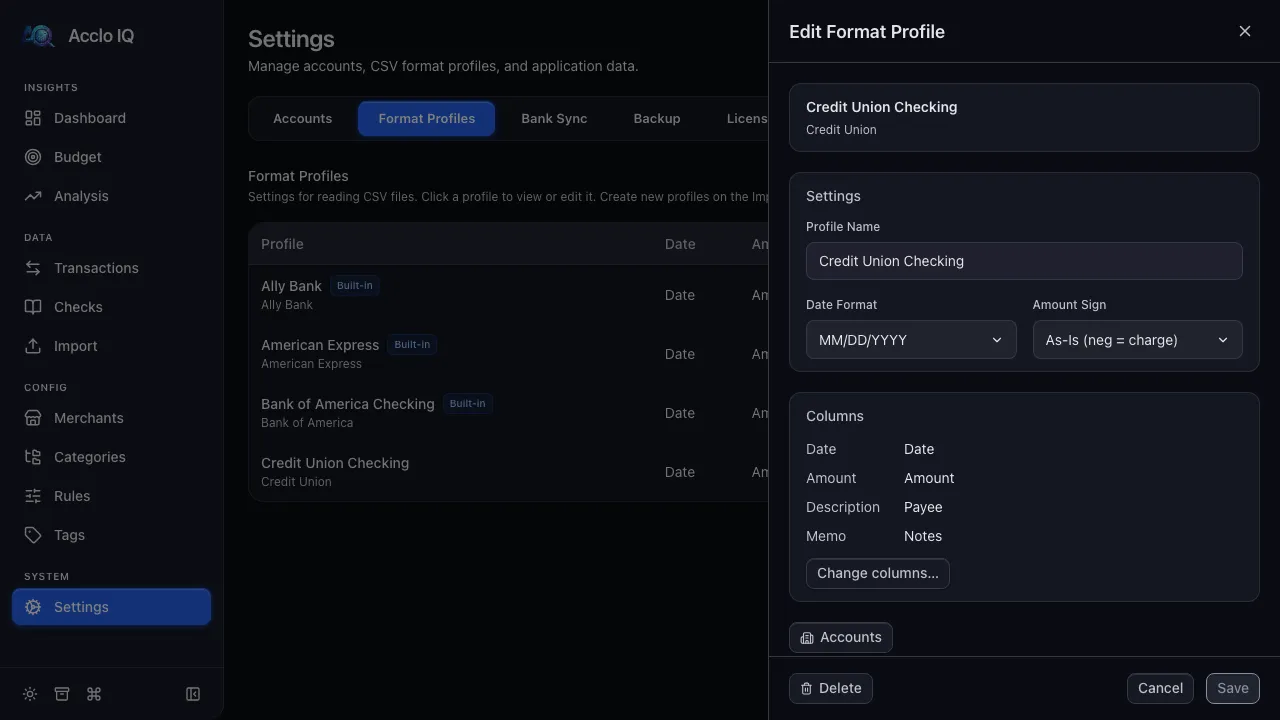
View and manage CSV format profiles. See the Format Profiles guide for details.
Bank Sync
Section titled “Bank Sync”Set up SimpleFIN Bridge for automatic transaction imports. See the Bank Sync guide for the full setup flow. Available on all tiers — Free is capped at two active accounts total, Pro is unlimited.
Backup
Section titled “Backup”This tab combines two features:
Cloud Sync (Pro)
Section titled “Cloud Sync (Pro)”End-to-end encrypted sync across devices via your cloud storage provider. See the Cloud Sync guide for setup and management.
Manual Backup
Section titled “Manual Backup”Export and restore database backups. See the Backup & Restore guide for details.
License
Section titled “License”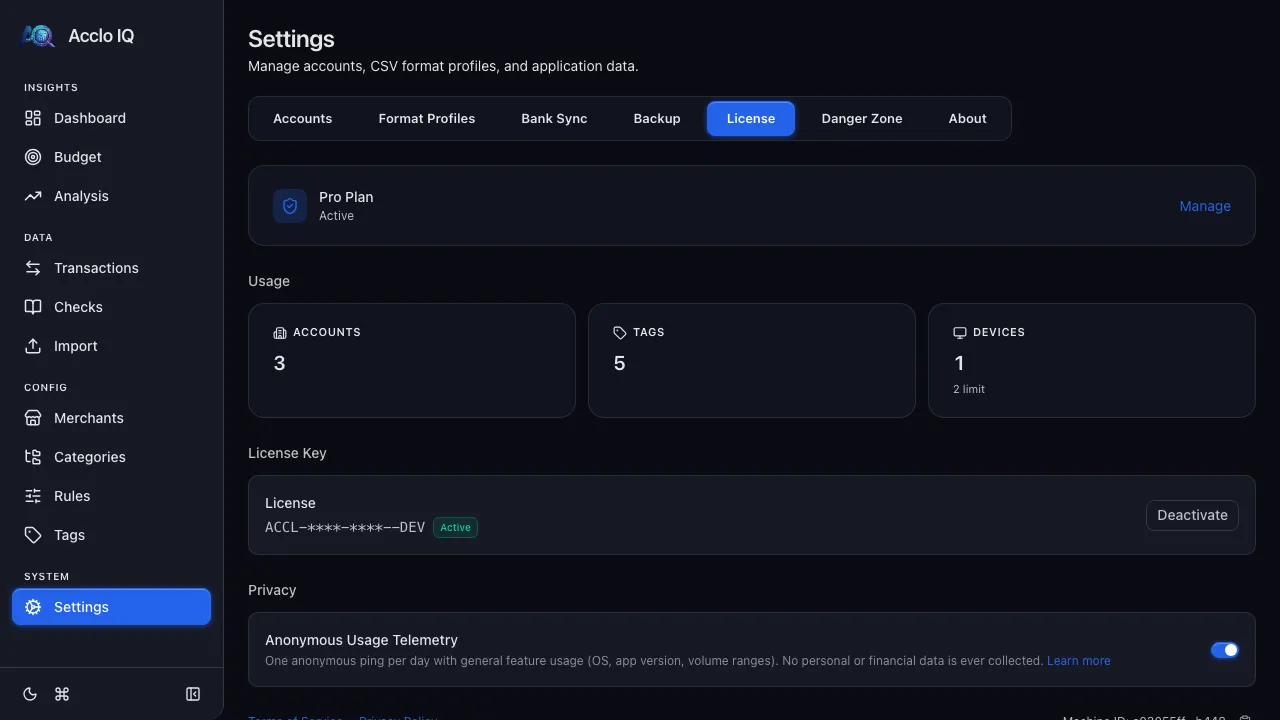
Manage your license and privacy settings:
- Current Plan — shows Free or Pro status with an Upgrade button (or Manage link for Pro)
- Usage — account count, tag count, and device count with remaining limits
- License Key — (Pro) masked license key with Deactivate button
- Linked Devices — (Pro) view and manage devices linked to your license. See the Licensing guide
- Privacy — you choose whether to share usage telemetry. One toggle, instantly reversible. See the Privacy reference
- Machine ID — unique device identifier (shown at the bottom)
Danger Zone
Section titled “Danger Zone”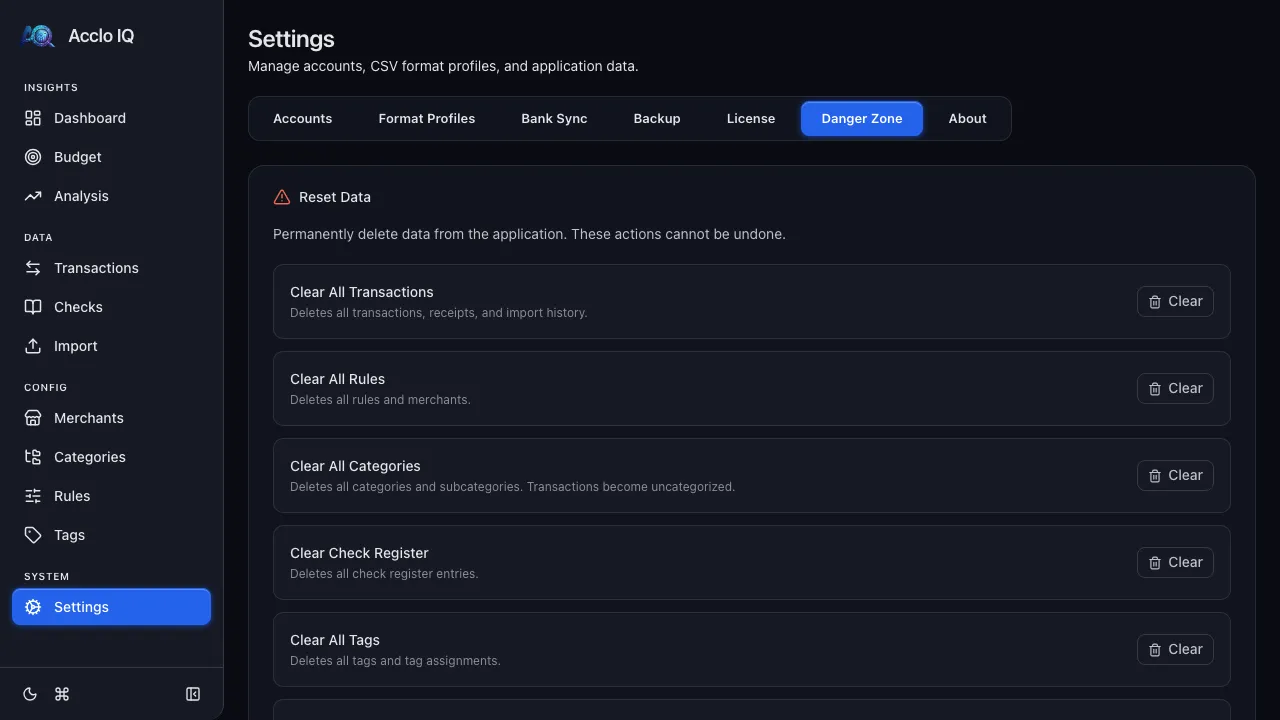
The Reset Data section provides targeted clear actions and a full reset:
- Clear All Transactions — deletes all transactions, receipts, and import history
- Clear All Rules — deletes all rules and merchants
- Clear All Categories — deletes all categories and subcategories (transactions become uncategorized)
- Clear Check Register — deletes all check register entries
- Clear All Tags — deletes all tags and tag assignments
- Clear All Budgets — deletes all budget targets
- Reset Everything — permanently deletes all data and resets the app to its initial state. Requires typing “RESET” to confirm. This cannot be undone.
View app version details, open the docs, manage desktop update checks, and send feedback from inside Acclo IQ.
- Version details — app version and build date, useful when reporting a bug
- Update checks — desktop update preference and status
- Documentation — opens this docs site
- Send Feedback — opens the in-app feedback form
Related Guides
Section titled “Related Guides”- Onboarding — first-time setup walkthrough
- Feedback — bug reports and feature requests
- Licensing — activation, devices, and offline behavior
- Cloud Sync — encrypted multi-device sync
- Privacy — what data is collected and how to opt out