
Transactions — Search, Filter & Manage
Overview
Section titled “Overview”The Transactions page is the central hub for viewing and managing all your financial data. Every transaction from CSV imports and Bank Sync appears here, with powerful search, filtering, and bulk operations.
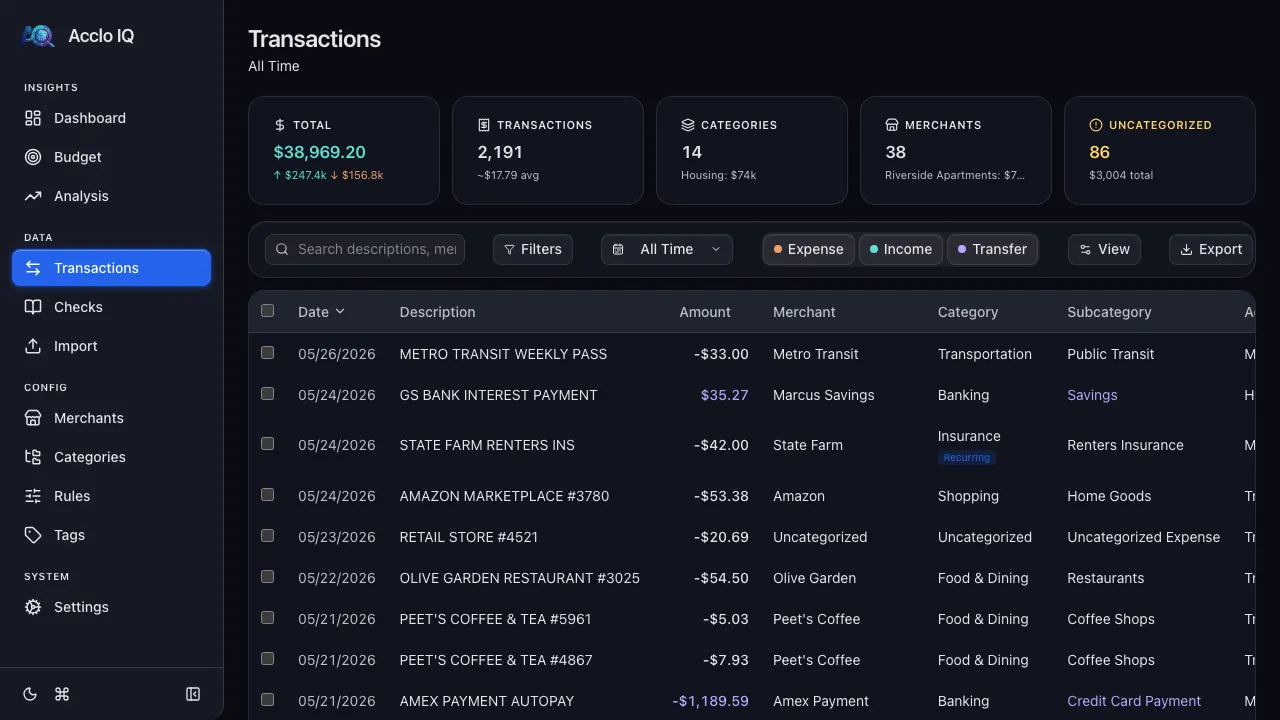
Summary Cards
Section titled “Summary Cards”Five cards across the top show real-time stats for the current filter:
- Total — sum of all visible amounts (labeled “Cash flow”, “Expense”, “Income”, or “Transfer” depending on the active flow type filter)
- Transactions — count of visible transactions
- Categories — unique category count
- Merchants — unique merchant count
- Uncategorized — count shown in warning color if greater than zero
Toolbar
Section titled “Toolbar”Search
Section titled “Search”Type in the search box to filter by description, memo, or notes. Results update in real time with a short debounce.
Period Filter
Section titled “Period Filter”Click the period dropdown to choose a time range: All Time, Today, Yesterday, This Week, Last Week, This Month, Last Month, This Year, Last Year, or Custom (date picker).
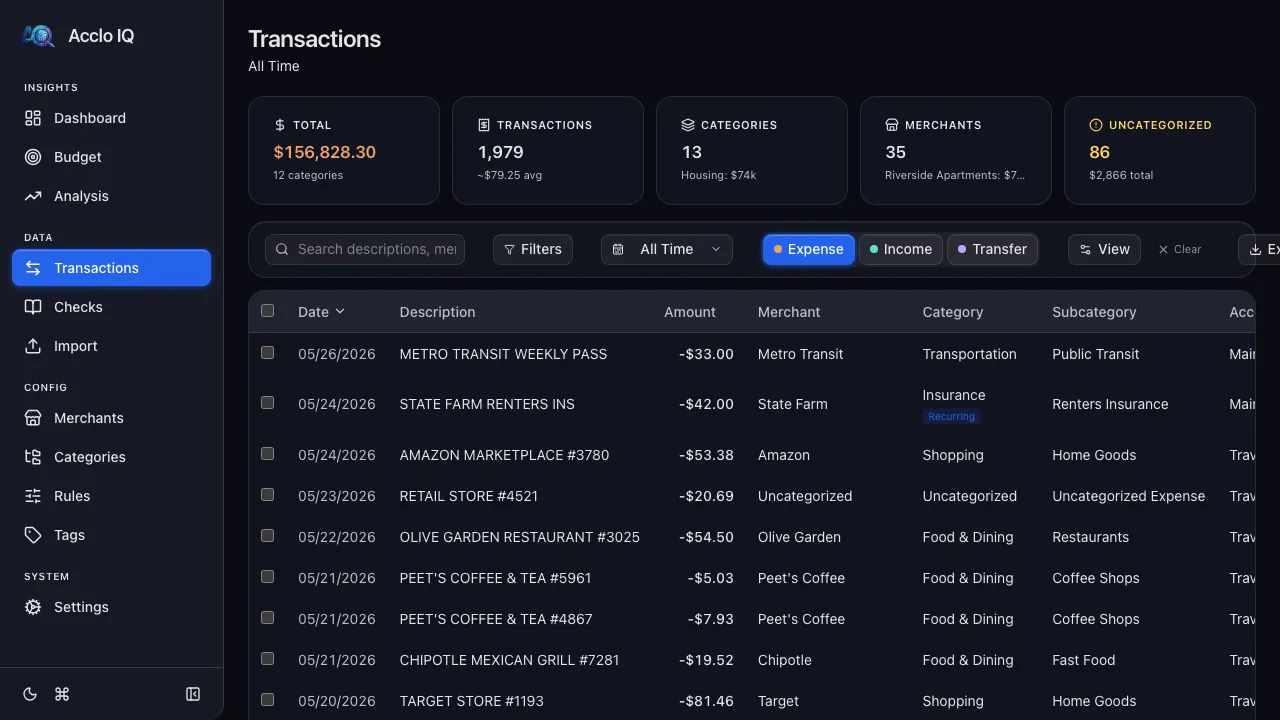
Flow Type Pills
Section titled “Flow Type Pills”Three toggle pills filter by transaction type:
- Expense — normal spending
- Income — money coming in
- Transfer — internal movements between accounts
No pill is selected by default, which means all flow types are shown. Select one or two pills to narrow the table; selecting all three returns to the unfiltered view.
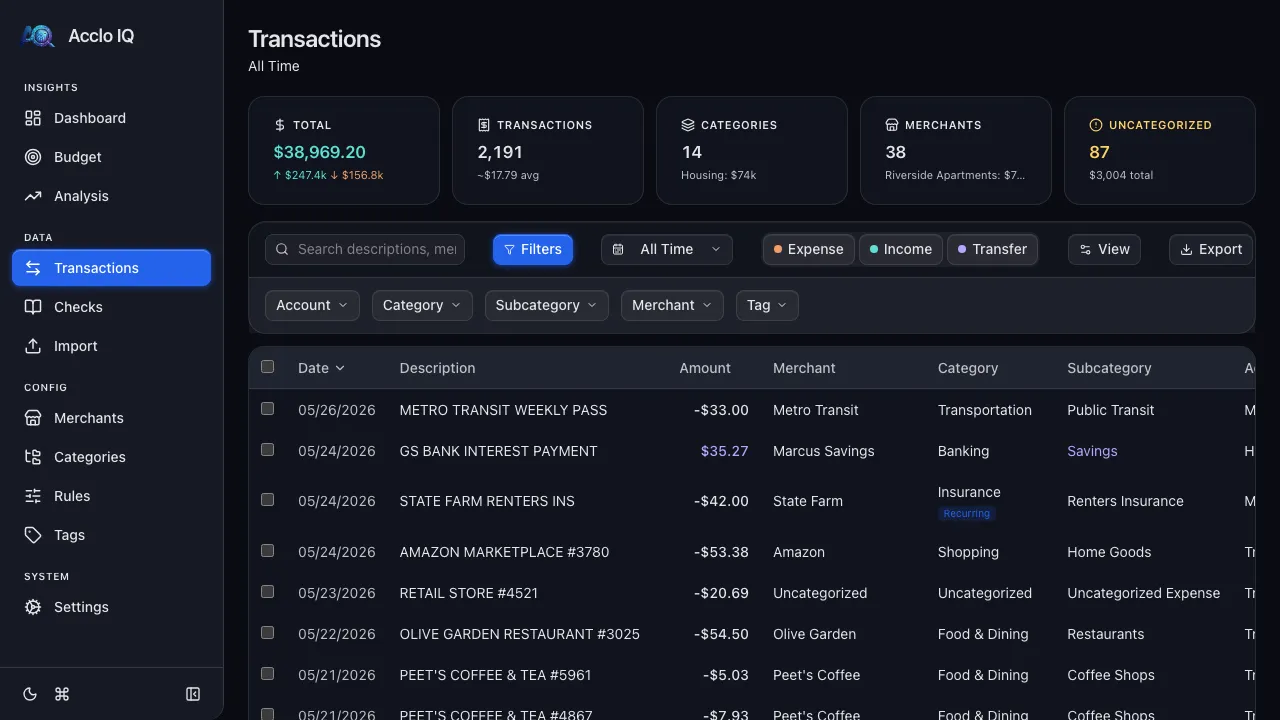
Filters Drawer
Section titled “Filters Drawer”Click Filters to open the filter drawer with multi-select dropdowns for:
- Account — filter to specific accounts
- Category — filter by category (clears subcategory selection)
- Subcategory — scoped to selected categories
- Merchant — filter by merchant
- Tag — filter by tag
Active filters show as removable chips. A badge on the Filters button shows how many entity filters are active.
View Menu
Section titled “View Menu”Click View for additional toggles:
- Review — show only uncategorized transactions
- Hidden — show only excluded transactions
- Edited — show only manually overridden transactions
- Copies — open the duplicate detection modal
When any filters are active, a Clear button appears to reset all filters at once.
Transaction Table
Section titled “Transaction Table”Columns
Section titled “Columns”| Column | Description | Sortable |
|---|---|---|
| Checkbox | Select for bulk actions | No |
| Date | Post date (default sort, newest first) | Yes |
| Description | Original bank description | Yes |
| Amount | Negative = money out, positive = money in | Yes |
| Merchant | Matched or manually assigned merchant | Yes |
| Category | Assigned category | Yes |
| Subcategory | Assigned subcategory | Yes |
| Account | Source account | Yes |
Click any column header to sort. Amount is color-coded: default for expenses, green for income, blue for transfers.
Pagination shows 50 transactions per page.
Detail Panel
Section titled “Detail Panel”Click any row to open the detail panel on the right side.
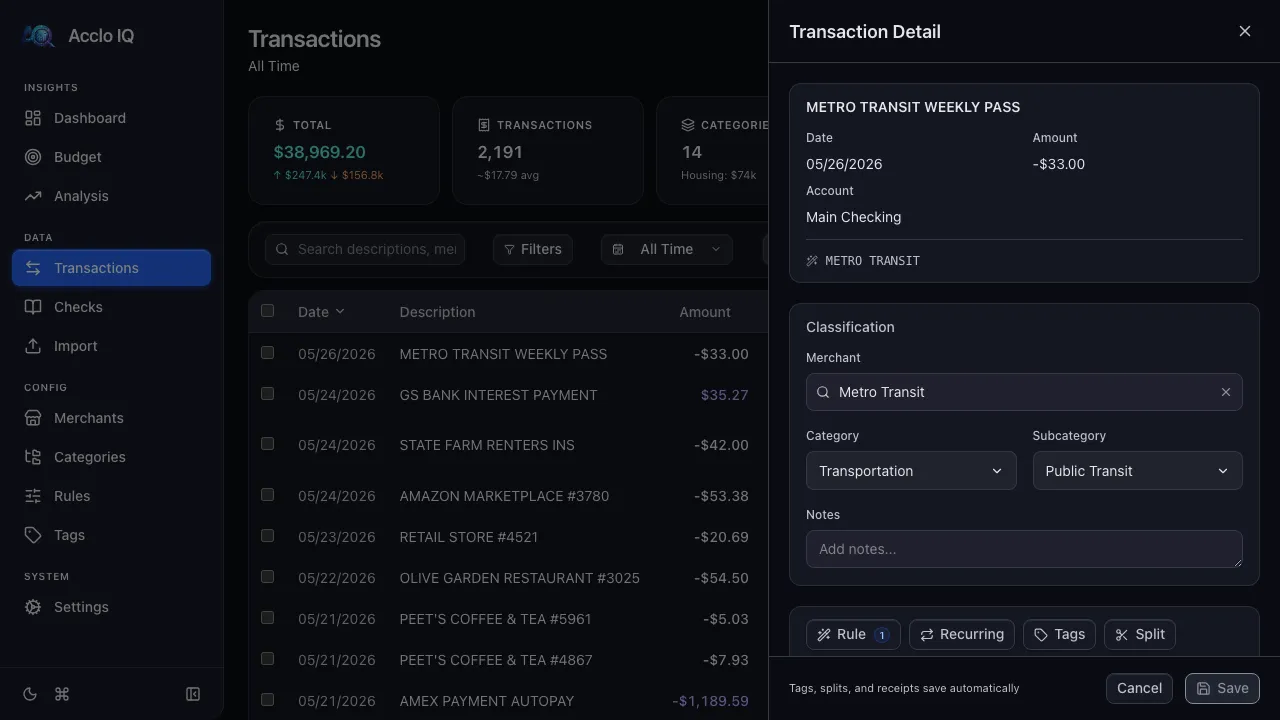
Summary Section
Section titled “Summary Section”Read-only fields at the top: description, date, amount, account, memo (if present), and rule pattern (if matched by a rule).
Classification Fields
Section titled “Classification Fields”Editable fields that save when you click Save or press Cmd/Ctrl+S:
- Merchant — autocomplete search of existing merchants; selecting one can auto-populate category and subcategory from its defaults. Type a name that doesn’t exist and click + Create “…” (or just save) to create it with the category and subcategory you save; a name that already exists, in any capitalization, links to that merchant
- Category — searchable dropdown
- Subcategory — scoped to the selected category
- Notes — free-text field for personal annotations
Action Toolbar
Section titled “Action Toolbar”Context-sensitive buttons below classification:
- Rule (magic wand) — create a rule from this transaction’s description
- Recurring (repeat icon) — create a recurring charge from this transaction
- Tags (tag icon) — assign or remove tags
- Split (scissors) — split into multiple categories; hidden for split child rows
- Attach (paperclip) — attach receipt images or documents (Pro)
- Check (book) — link to a check register entry; hidden for credit card accounts
Each button shows a badge with the count of associated items.
Keyboard Shortcuts
Section titled “Keyboard Shortcuts”- Cmd/Ctrl+S — save changes
- Escape — close panel (prompts to save if changes are unsaved)
Splitting Transactions
Section titled “Splitting Transactions”Click the Split button in the detail panel to divide a transaction across multiple categories.
- The editor shows the original amount and a remaining balance
- Each split line has: amount, merchant, category, subcategory, and optional notes
- Click Rest on any amount field to auto-fill the remaining balance
- Click + Add line for additional splits
- Click Confirm Split when all amounts balance to the original
Split children appear indented below the parent in the table. To undo a split, click the parent transaction and choose Unsplit Transaction.
Duplicate Detection
Section titled “Duplicate Detection”Click View > Copies to scan for potential duplicate transactions. The modal shows pairs side by side:
- Cross-source duplicates — same transaction from CSV and Bank Sync
- Cross-account duplicates — transfers appearing in both accounts
For each side, you can Exclude (keep but hide from totals) or Delete.
Bulk Actions
Section titled “Bulk Actions”Select transactions using the checkboxes, then use the bulk action bar:
- Clear — deselect all
- Delete — permanently delete selected transactions (with confirmation)
Export
Section titled “Export”Click Export in the toolbar to open the export modal. Choose what to export:
- Transactions — export as CSV or Excel (.xlsx). Check “Current view” to export only filtered transactions, or uncheck it to export all data.
- Receipts — export all receipt attachments for the visible or selected transactions as a ZIP file. Requires Pro.
Drill-Down Navigation
Section titled “Drill-Down Navigation”Other pages (Dashboard, Budget, Analysis) link to Transactions with pre-applied filters via URL parameters. When you arrive from a drill-down link, a “(filtered — show all)” indicator appears. Click “show all” to clear the drill-down filters.
Related Guides
Section titled “Related Guides”- Dashboard — drill down from charts to transactions
- Categories — manage the category hierarchy
- Rules Engine — auto-categorize transactions
- Tags — organize transactions with custom labels