
Merchants — Transaction Attribution
Overview
Section titled “Overview”The Merchants page shows all merchants in your database — both those created automatically by the rule engine and those assigned manually. Each merchant has a default category and subcategory that auto-populates when you select it during transaction editing.
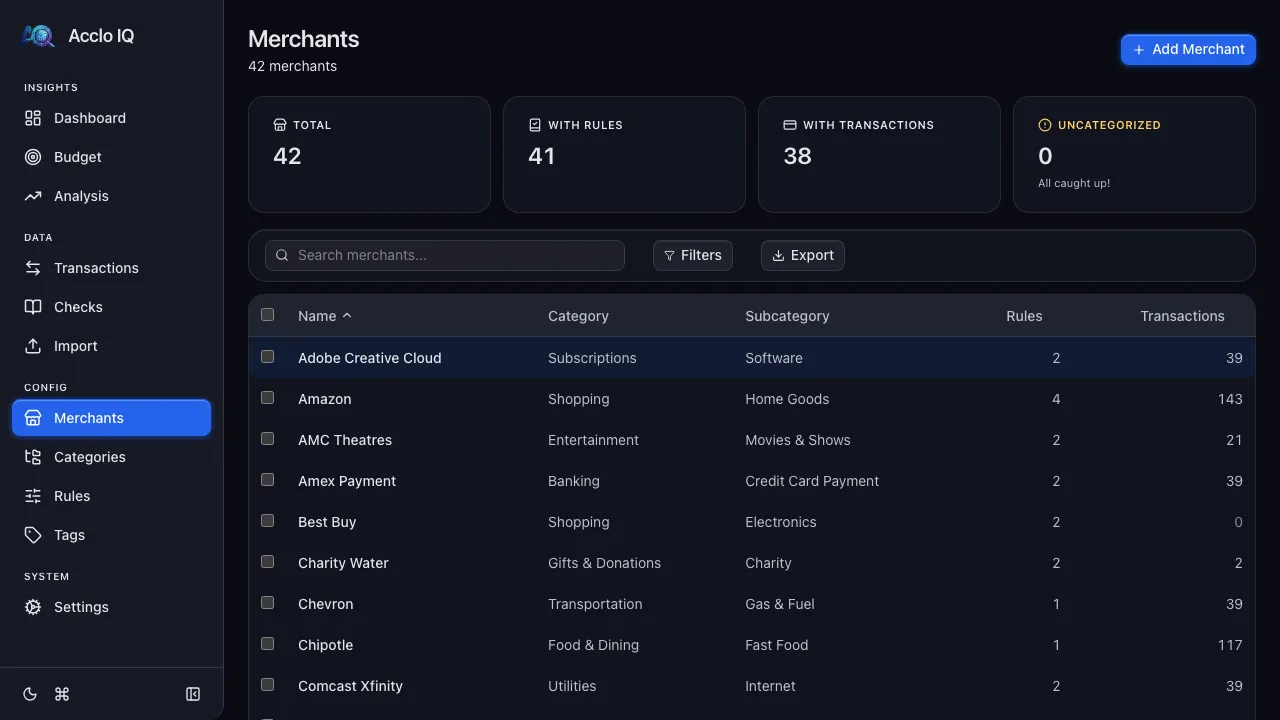
Summary Cards
Section titled “Summary Cards”Four cards across the top:
- Total — total merchant count
- With Rules — merchants that have at least one rule engine pattern
- With Transactions — merchants assigned to at least one transaction
- Uncategorized — merchants without a default category (warning color if > 0)
Merchant Table
Section titled “Merchant Table”| Column | Description |
|---|---|
| Name | Merchant name (sortable) |
| Category | Default category assignment |
| Subcategory | Default subcategory assignment |
| Rules | Number of rule engine patterns |
| Transactions | Number of transactions using this merchant |
Click any row to open the detail panel for editing.
Adding a Merchant
Section titled “Adding a Merchant”Click + Add Merchant in the page header. Enter:
- Name — the merchant name
- Category and Subcategory — default classification
The merchant is created immediately and available for rule assignment and transaction categorization. If a merchant with that name already exists (ignoring capitalization and extra spaces), its panel opens instead, so you never end up with two.
You can also create a merchant directly from a transaction: in the transaction detail panel, type a name in the Merchant field and click + Create “…”, or just save. If a merchant with that name already exists, the transaction is linked to it. When a new merchant is created, the category and subcategory you picked become its defaults.
Editing a Merchant
Section titled “Editing a Merchant”Click any merchant row to open the detail panel:
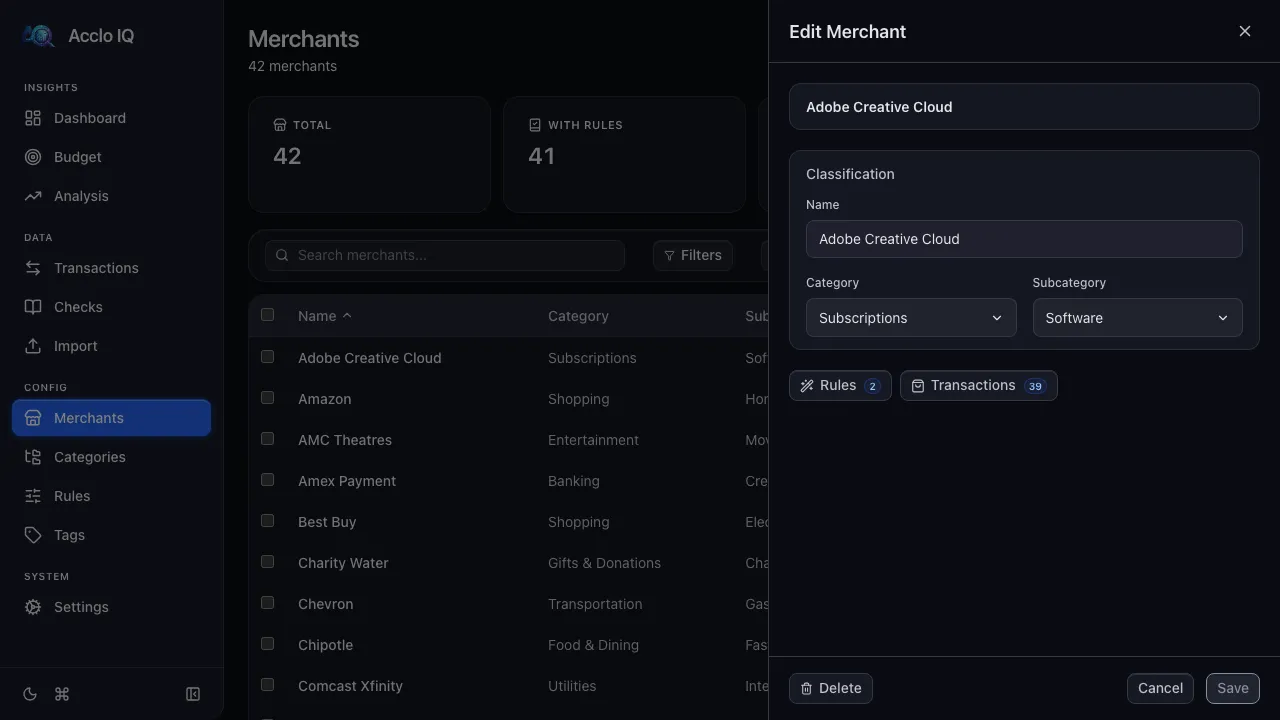
- Name — rename the merchant. If another merchant already has that name, the panel offers Merge into …: this merchant’s transactions and rules move to the other one, and this merchant is deleted.
- Category / Subcategory — change the default classification
The panel also shows navigation buttons to:
- Rules — view and edit this merchant’s rule patterns on the Rules page
- Transactions — view all transactions assigned to this merchant
Deleting Merchants
Section titled “Deleting Merchants”Select merchants using the checkboxes, then click Delete in the bulk action bar. Deleting a merchant removes it from transactions and rules.
How Merchants Relate to Rules
Section titled “How Merchants Relate to Rules”Each merchant can have multiple rule engine patterns. When a pattern matches a transaction description, the rule assigns the merchant (along with its category and subcategory) to the transaction.
Changing a merchant’s default category updates all of that merchant’s transactions — except ones you categorized by hand. Manually categorized transactions (marked “Manually overridden” in the detail panel) always keep your choice, whether the change comes from a merchant edit or a rules re-run. To hand one back to automatic categorization, clear its override in the transaction detail panel.
Related Guides
Section titled “Related Guides”- Rules Engine — create patterns that assign merchants
- Transactions — manually assign merchants to transactions
- Categories — manage the categories merchants map to