
Dashboard — See Where Your Money Went
See the Big Picture First
Section titled “See the Big Picture First”The Dashboard turns your transactions into a quick financial summary. Start with the five cards across the top to answer the most common questions:
- How much did I spend?
- How much income came in?
- What was the net effect of transfers?
- Did more money come in than go out?
- How many transactions still need a category?
Then use the tables and charts to find the categories, subcategories, and merchants behind the totals.
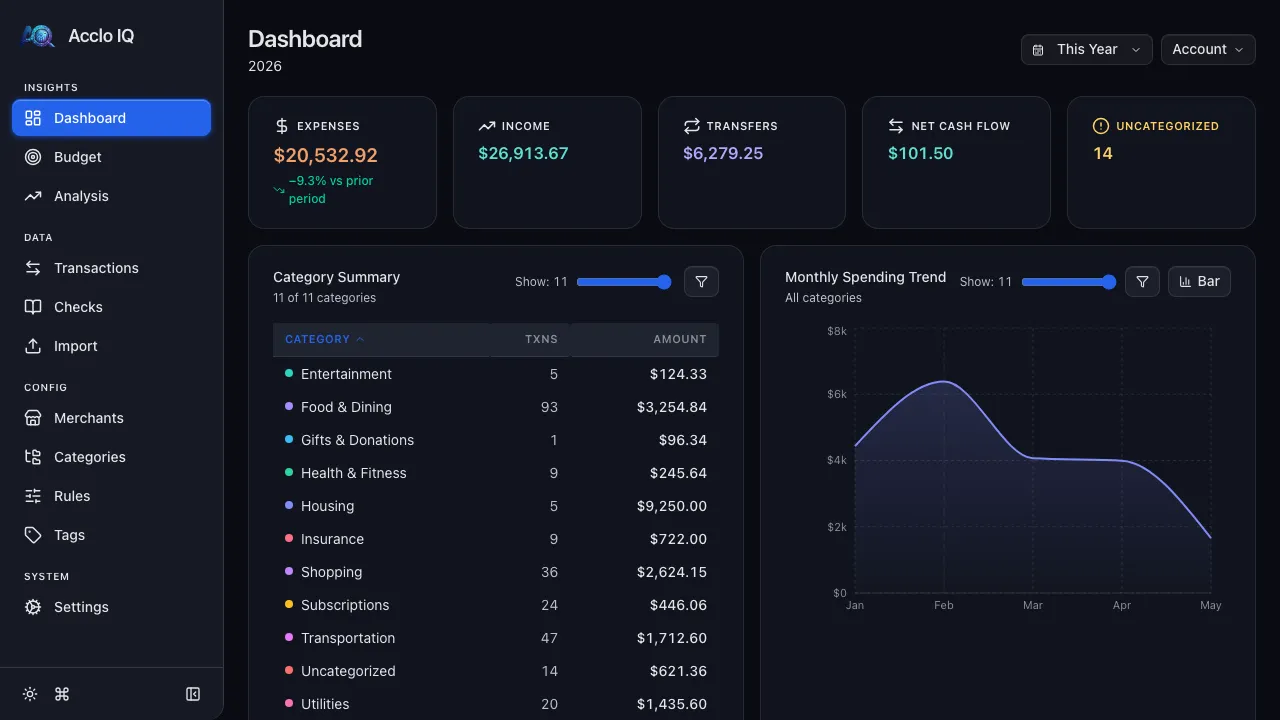
Read Your Financial Summary
Section titled “Read Your Financial Summary”The cards update together whenever you change the period or accounts:
| Card | What it tells you |
|---|---|
| Expenses | Total spending in the selected period and, when available, the change from the previous comparable period |
| Income | Income received in the selected period |
| Transfers | Net movement among transactions classified as transfers; incoming and outgoing legs can offset |
| Net Cash Flow | The combined result of income, expenses, and transfers; positive means a net inflow and negative means a net outflow |
| Uncategorized | Transactions that still need a category; zero means you are caught up |
Click any card to open the Transactions page with the same period, account selection, and relevant transaction type already applied.
Focus the Whole Dashboard
Section titled “Focus the Whole Dashboard”Choose a Period
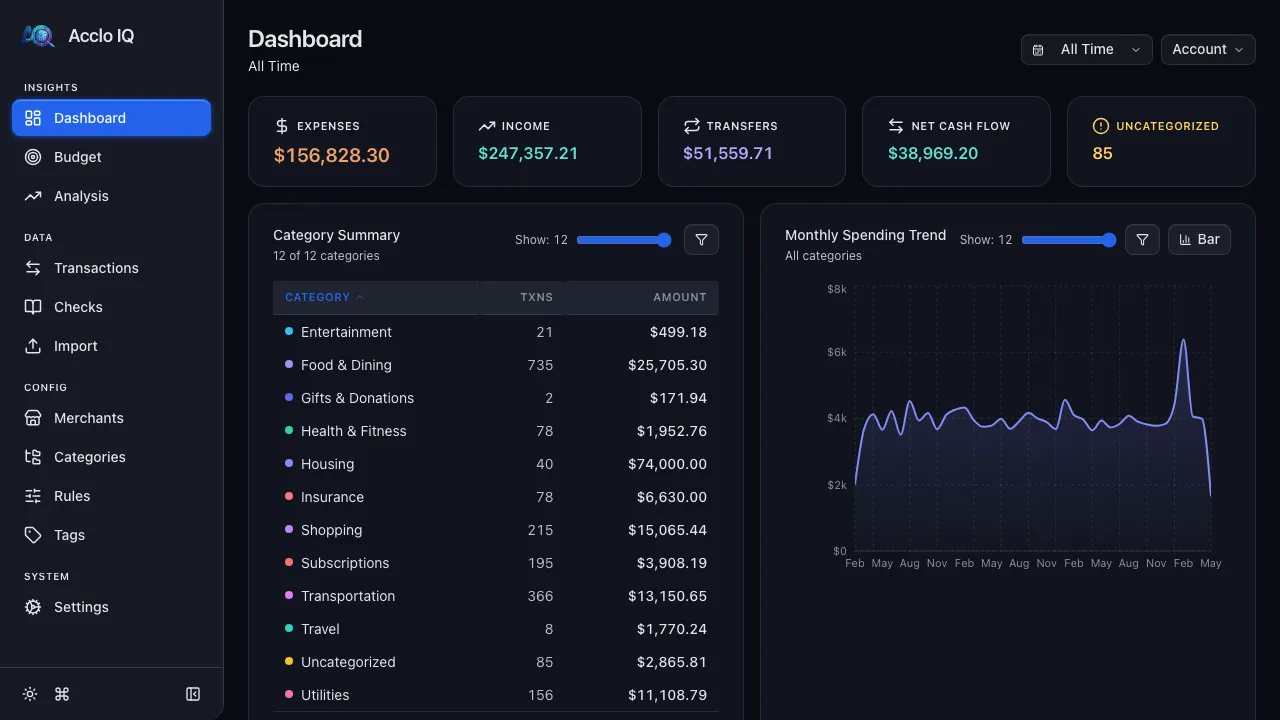
Section titled “Choose a Period”Use the period control to compare this month, last month, this year, or another available range. All Time removes the explicit period, within your plan’s history limit — the most recent 12 months on Free, full history on Pro.
Choose Accounts
Section titled “Choose Accounts”Use Account to include one or more accounts. All accounts are included by default. Select a bank, credit card, or investment account when you want to understand it on its own.
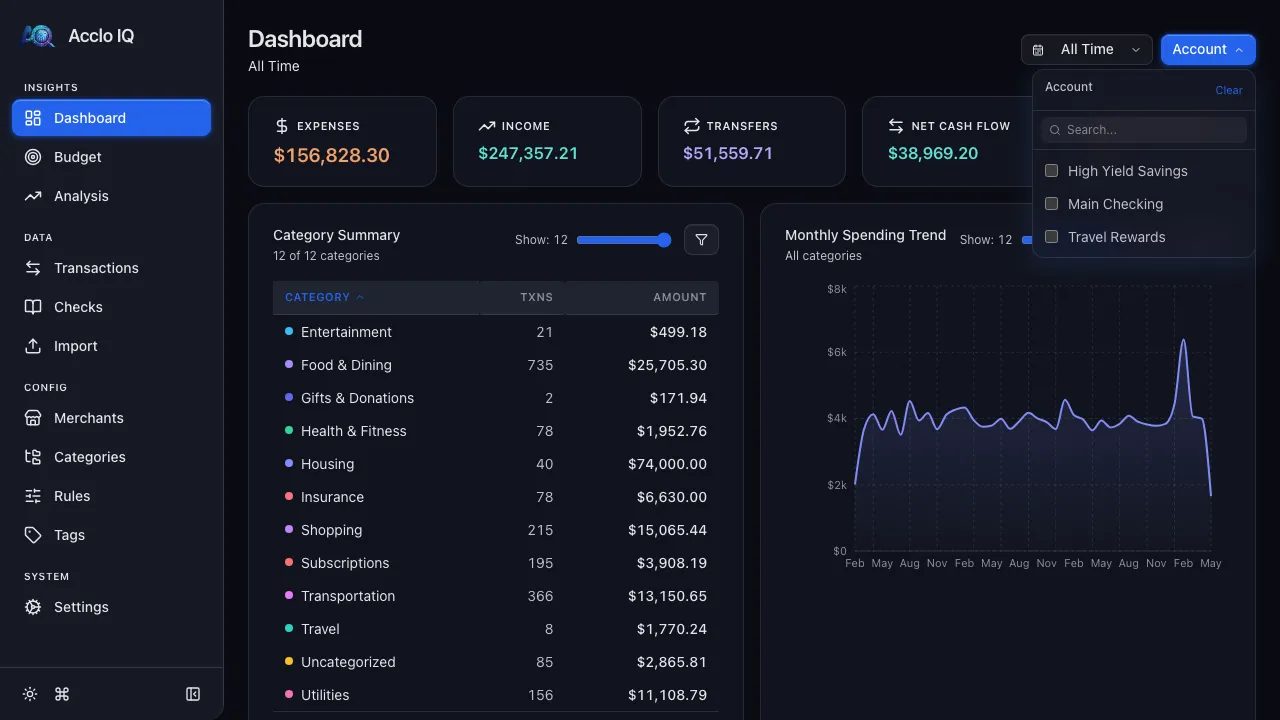
The selected period and accounts apply to every card, table, and chart on the page.
Follow Spending from Category to Merchant
Section titled “Follow Spending from Category to Merchant”The summary tables show transaction counts and totals at three levels:
- Category Summary — broad areas such as Food or Housing
- Subcategory Summary — a more specific breakdown within the selected category
- Merchant Summary — the businesses behind the selected category and subcategory
Click a category to focus the subcategory and merchant tables, along with the monthly spending chart, on that category. Click it again or use the back arrow to clear the focus. Click a subcategory to narrow the merchant list further.
Click a merchant to open its matching transactions. The financial summary cards also open Transactions directly with their relevant filters.
Use the slider to control how many rows appear and the filter control to hide individual categories, subcategories, or merchants. Column headings sort each table by name, transaction count, or amount.
Compare Spending Over Time
Section titled “Compare Spending Over Time”Monthly Spending Trend
Section titled “Monthly Spending Trend”The monthly chart shows total spending over time. Switch between bar and line views, adjust how many categories contribute to the chart, or hide categories you do not want to compare. When you focus a category in the summary table, this chart follows that selection.
Spending Trend by Category
Section titled “Spending Trend by Category”This chart compares category spending across months. Each category has a distinct color. Use the slider and filter control to choose which categories remain visible.
Spending Trend by Subcategory
Section titled “Spending Trend by Subcategory”This chart provides the same comparison at the subcategory level, which is useful when one broad category contains several different spending habits.
On smaller screens, category and subcategory sections let you switch between List and Trend views without leaving the Dashboard.
Advanced Reference: How the Summary Is Calculated
Section titled “Advanced Reference: How the Summary Is Calculated”The five summary cards are sometimes called key performance indicators, or KPIs. Acclo IQ classifies transactions by their category’s flow type rather than by whether the amount is positive or negative. This keeps refunds and transfers in the correct group.
- Expenses is the absolute total of transactions classified as expenses. Refunds reduce that total.
- Income is the total of transactions classified as income.
- Transfers is the absolute display of the signed transfer total. Because incoming and outgoing transfer legs can offset one another, it represents net classified transfer movement rather than gross transfer volume.
- Net Cash Flow adds signed expenses, income, and transfers. It is not the same as income minus the displayed absolute expense and transfer figures.
- Uncategorized counts transactions with no category or the system Uncategorized category.
Expense change compares the selected period with the immediately preceding period of the same length. No comparison appears when there is no suitable earlier period.
Dashboard totals use regular transactions and split children so the results agree with Budget, Analysis, and filtered transaction drill-downs. Excluded transactions do not contribute.
Related Guides
Section titled “Related Guides”- Transactions — review the entries behind dashboard totals
- Categories — organize the category and subcategory breakdowns
- Budgets — set spending targets by category
- Analysis — explore deeper trends and year-over-year comparisons (Pro)