
Recurring Charges — Find Bills Automatically
Find Bills and Subscriptions Automatically
Section titled “Find Bills and Subscriptions Automatically”Acclo IQ looks through your transaction history for charges that repeat on a regular schedule. It can surface subscriptions, rent, utilities, loan payments, and other bills without requiring you to build a list first.
Open Budget → Recurring Charges to:
- Review bills Acclo IQ found in your history
- Confirm the charges you want to track and dismiss the ones you do not
- See the last payment and next expected date for every tracked charge
- Add a bill manually when it has not appeared enough times to be detected
- Separate committed recurring costs from flexible spending in your budget
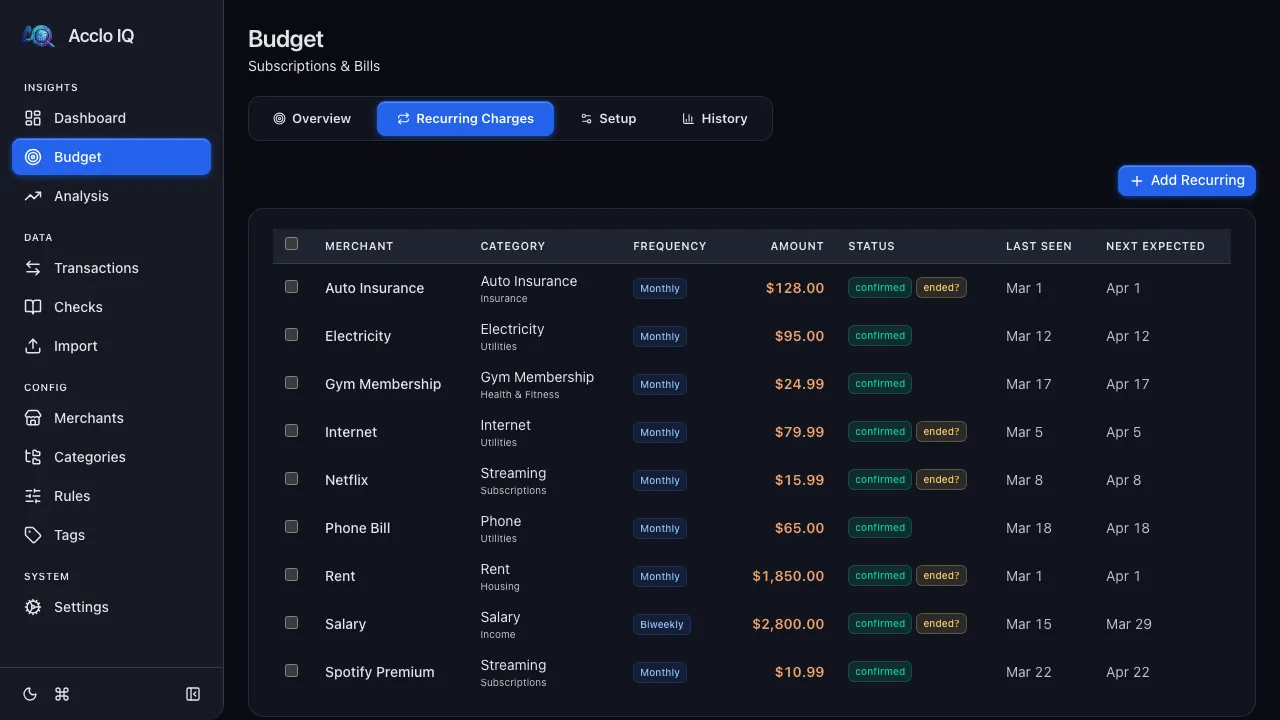
Review Detected Charges
Section titled “Review Detected Charges”When Acclo IQ finds a likely recurring charge, it appears under Detected Charges below your tracked entries. Each suggestion shows the merchant, billing frequency, typical amount, number of past occurrences, and match strength. A transaction-description match may also appear when a merchant has more than one kind of charge.
Choose what happens next:
- Confirm saves the charge, adds it to your tracked entries, and applies the Recurring tag to matching transactions.
- Dismiss hides that specific suggestion and removes its Recurring tags. Other recurring charges from the same merchant can still be detected separately.
Choose Show Dismissed to review past dismissals. Restore makes a dismissed charge eligible to appear in the next detection scan.
If no suggestions appear yet, import more transactions or add the charge manually. Detection needs at least two matching transactions before it can suggest a schedule.
Track What Is Due Next
Section titled “Track What Is Due Next”Your confirmed and manually added charges appear at the top of the page. The table shows:
| Column | What it tells you |
|---|---|
| Merchant | The name used for the recurring charge; a filter icon means only selected descriptions match |
| Category | Where the charge appears in your budget |
| Frequency | How often it is expected |
| Amount | The expected charge per cycle |
| Status | Whether you confirmed it or added it manually; charges that may have ended are flagged |
| Last Seen | The most recent matching transaction |
| Next Expected | When the next charge is expected |
Click a row to review its schedule or change its merchant, frequency, expected amount, or transaction match. You can also delete one entry from its detail panel or select several entries for bulk deletion.
Add a Charge Manually
Section titled “Add a Charge Manually”Choose Add Recurring when you already know about a bill but Acclo IQ has not detected it. Enter:
- Merchant — the name you want to track
- Frequency — weekly, biweekly, semi-monthly, monthly, quarterly, or yearly
- Expected Amount — the usual amount per charge
- Transaction Match — optional; leave it blank to include every transaction from the merchant
- Start Date — the date used to begin the schedule
Manual entries use the same forecasting, tagging, and budget features as confirmed suggestions.
Keep Your Budget Grounded in Commitments
Section titled “Keep Your Budget Grounded in Commitments”Confirmed and manual recurring charges feed the other Budget tabs automatically.
Overview
Section titled “Overview”Category progress bars separate money already spent on recurring charges from flexible spending. The summary shows recurring and flexible amounts separately.
The Committed Recurring card shows your monthly recurring commitment and its share of the total budget. Recurring Status compares paid and upcoming charges for the current month; click it to return to Recurring Charges.
Each category shows how much of its budget is already committed to recurring charges. If the commitment is greater than the category budget, Acclo IQ warns that the budget is below the recurring commitment.
The sidebar totals recurring commitments and shows what remains available for flexible spending.
Find Recurring Transactions Anywhere
Section titled “Find Recurring Transactions Anywhere”Acclo IQ maintains a system tag named Recurring. Use it on the Transactions page to see the purchases behind your recurring totals.
| Action | What happens to matching transactions |
|---|---|
| Confirm a suggestion | The Recurring tag is added |
| Add a charge manually | The Recurring tag is added |
| Dismiss a suggestion | The Recurring tag is removed |
| Delete an entry | The Recurring tag is removed |
New CSV imports and bank-synced transactions receive the tag automatically when they match an active recurring entry. The system tag cannot be deleted or renamed, but you can change its color.
Advanced Reference: How Detection Decides
Section titled “Advanced Reference: How Detection Decides”Detection groups transactions by merchant and, when needed, by similar descriptions. It then compares timing, amount consistency, and recency. A group must have at least two transactions and resemble a supported schedule before it can be suggested.
The match percentage combines:
- Timing regularity — how consistently the charge arrives
- Amount consistency — including gradual price changes when the overall pattern remains stable
- History — more occurrences provide stronger evidence
- Recency — recent charges carry more weight
- Missed-cycle allowance — an occasional skipped payment lowers confidence instead of automatically rejecting the charge
Suggestions below 50% are not shown. Suggestions based on only two occurrences are labeled Early and cannot score above 55%. The badge colors provide a quick guide: green at 80% or higher, neutral from 60–79%, and amber below 60%.
Supported schedules are weekly, biweekly, semi-monthly, monthly, quarterly, and yearly. Dates are advanced by calendar interval, so monthly and yearly schedules handle month ends and leap years.
Advanced Reference: Match One Charge from a Mixed Merchant
Section titled “Advanced Reference: Match One Charge from a Mixed Merchant”A merchant can bill you for both a subscription and one-off purchases. For example, Amazon Prime should count as recurring without treating every Amazon Marketplace purchase as a subscription.
The optional Transaction Match narrows an entry to selected transaction descriptions:
- Blank — match every transaction from the merchant
- Pattern — match only descriptions that fit a case-insensitive regular expression
For example, AMAZON\s+PRIME.* matches descriptions beginning with “AMAZON PRIME” while leaving unrelated Amazon purchases alone. Acclo IQ validates the expression before saving.
Detection can create separate suggestions for distinct descriptions from the same merchant. Confirming or dismissing one suggestion does not affect the others. The same match controls which transactions receive the Recurring tag.
If you do not need this precision, leave Transaction Match blank.
Free vs Pro
Section titled “Free vs Pro”| Capability | Free | Pro |
|---|---|---|
| Detection and confirmation | Yes (12-month lookback) | Yes (unlimited lookback) |
| Manage recurring charges | Yes | Yes |
| Upcoming forecast | Yes | Yes |
| Budget integration | Yes | Yes |
Free includes the full recurring feature set within its 12-month window. Pro removes that lookback limit, which helps identify long-cycle charges such as annual renewals last paid more than a year ago.
Related Guides
Section titled “Related Guides”- Budgets — plan around recurring and flexible spending
- Transactions — review transactions tagged as Recurring
- Merchants — manage the merchants used for detection
- Tags — filter transactions with the system Recurring tag