
Format Profiles — CSV Column Mapping
Overview
Section titled “Overview”Format profiles tell Acclo IQ how to read your bank’s CSV exports — which columns are the date, amount, description, and so on. Acclo IQ ships with built-in profiles for major banks, and you can create custom profiles for any bank.
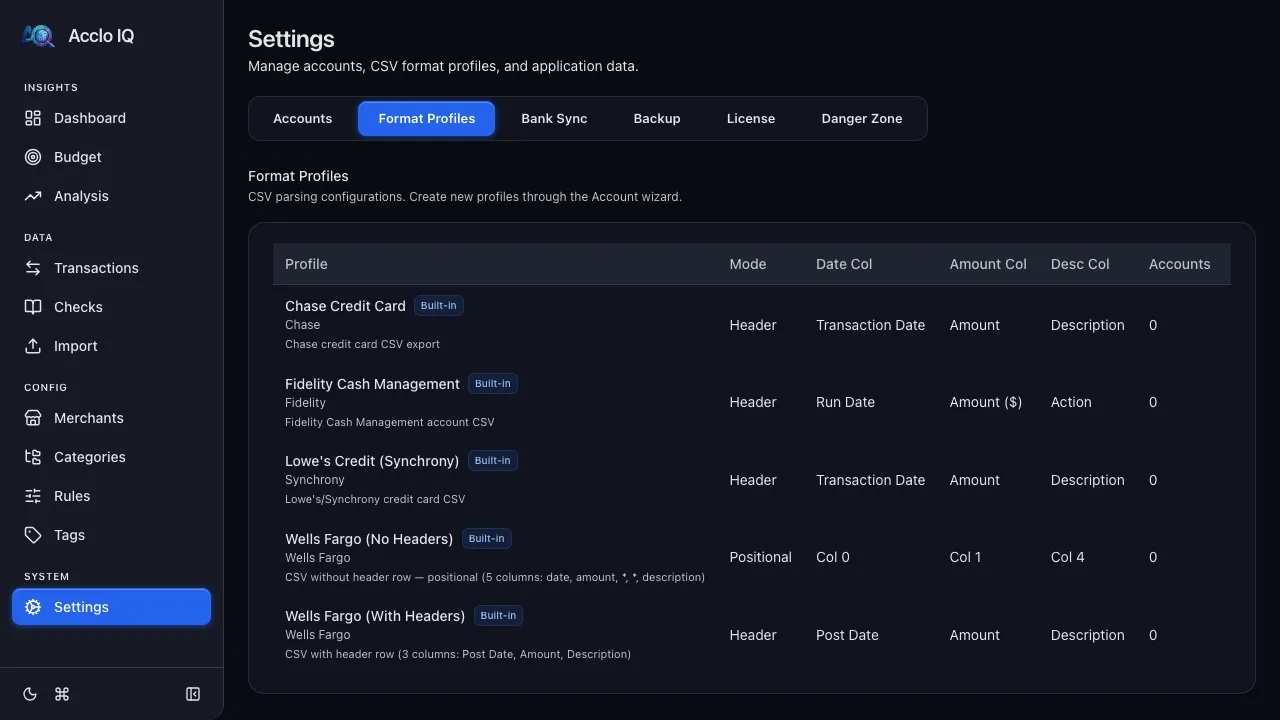
Built-in Profiles
Section titled “Built-in Profiles”Acclo IQ includes profiles for several major banks out of the box:
- Chase Credit Card — standard Chase CSV with Transaction Date, Amount, Description, and Memo columns
- Wells Fargo (With Headers) — CSV with Post Date, Amount, and Description
- Wells Fargo (No Headers) — positional CSV without a header row
- Synchrony (Lowe’s Credit) — Synchrony bank CSV format
- Fidelity Cash Management — Fidelity CSV format
Built-in profiles cannot be edited or deleted. If your bank isn’t listed, create a custom profile.
Viewing Format Profiles
Section titled “Viewing Format Profiles”Go to Settings > Format Profiles to see all profiles. The table shows:
| Column | Description |
|---|---|
| Profile | Name, institution, and whether it’s built-in |
| Mode | Header (reads column names) or Positional (reads by column index) |
| Date Col | Which column contains the transaction date |
| Amount Col | Which column contains the amount |
| Desc Col | Which column contains the description |
| Accounts | How many accounts use this profile |
Creating a Custom Profile
Section titled “Creating a Custom Profile”Custom profiles are created during CSV import when no existing profile matches:
- Go to the Import page and select your account
- Click Create a new format profile
- Upload a sample CSV file — the app auto-detects columns, date format, and encoding
- Review the column mapping and assign roles to each column:
- Date — the transaction date column (required)
- Amount — the transaction amount column (required)
- Description — the transaction description (required)
- Memo — optional additional text
- Skip — ignore this column
- Configure profile settings:
- Profile Name — a descriptive name (defaults to your account name + “CSV”)
- Date Format — MM/DD/YYYY, YYYY-MM-DD, MM/DD/YY, or MM-DD-YYYY
- Amount Sign — “As-Is” (negative = charge) or “Invert” (positive = charge)
- Click Create Profile
The profile is saved and immediately available for future imports.
Deleting a Profile
Section titled “Deleting a Profile”Custom profiles can be deleted from Settings > Format Profiles if no accounts currently use them. The delete button is disabled for profiles with linked accounts.
- Most banks use “As-Is” amount sign (negative = money out)
- If your amounts appear reversed after import, edit the profile and change the amount sign to “Invert”
- The generic CSV profile includes a downloadable template you can use as a reference
Related Guides
Section titled “Related Guides”- CSV Import — use format profiles during the import process
- Supported Banks — full list of built-in bank profiles