
Categories & Subcategories — Organization
Overview
Section titled “Overview”Categories form a two-level hierarchy for classifying transactions. Every transaction belongs to a category (e.g., “Food & Dining”) and a subcategory (e.g., “Groceries” or “Restaurants”). Categories drive budgets, dashboard breakdowns, and rule engine assignments.
Page Layout
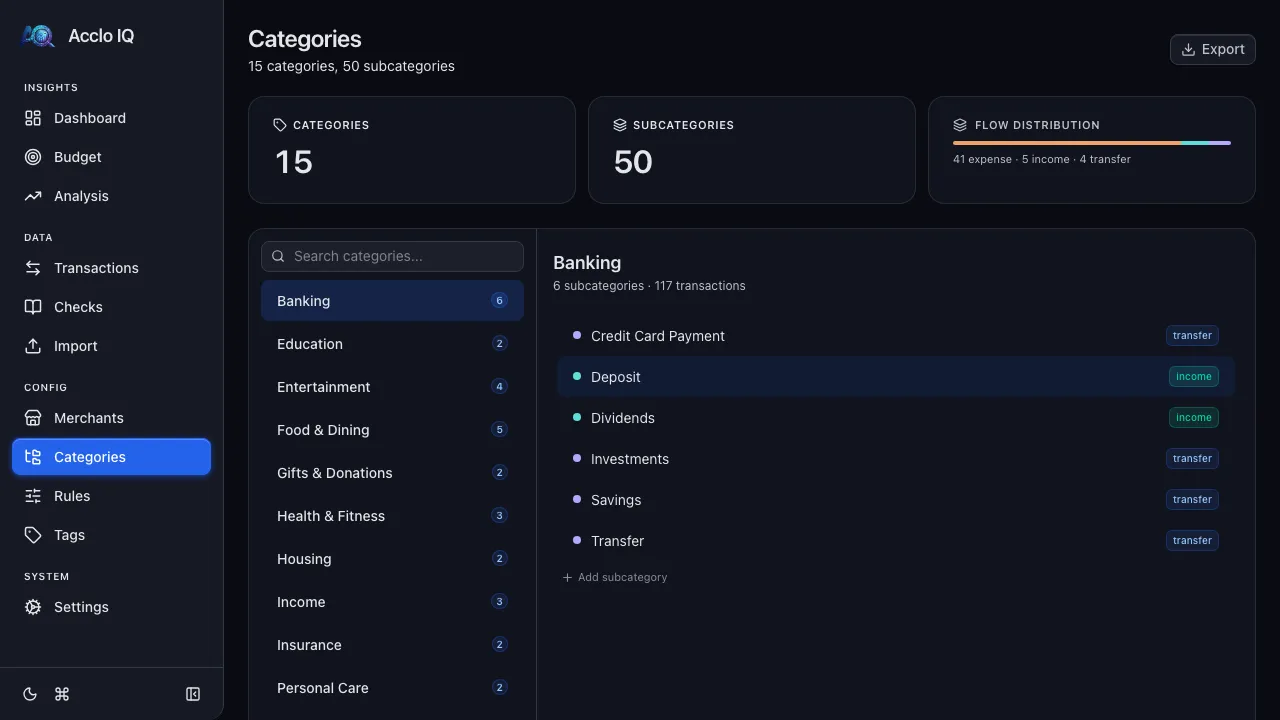
Section titled “Page Layout”The Categories page uses a two-panel layout:
- Left panel — searchable list of all categories with subcategory counts
- Right panel — detail view for the selected category, showing its subcategories
On mobile, the layout switches between list and detail views with a back button.
Summary Cards
Section titled “Summary Cards”Three cards at the top show:
- Categories — total count
- Subcategories — total count
- Flow Distribution — visual breakdown showing how many subcategories are expense, income, and transfer type
Flow Types
Section titled “Flow Types”Every subcategory has a flow type that determines how it’s treated in financial calculations:
| Flow Type | Description | Examples |
|---|---|---|
| Expense | Normal spending | Groceries, Restaurants, Utilities, Rent |
| Income | Money coming in | Salary, Deposits, Dividends, Interest |
| Transfer | Internal movement | Credit Card Payment, Savings, Investments |
Flow types are critical for accurate reporting — the Dashboard, Budget, and Analysis pages use them to separate spending from income and transfers. See the Flow Types reference for details.
Managing Categories
Section titled “Managing Categories”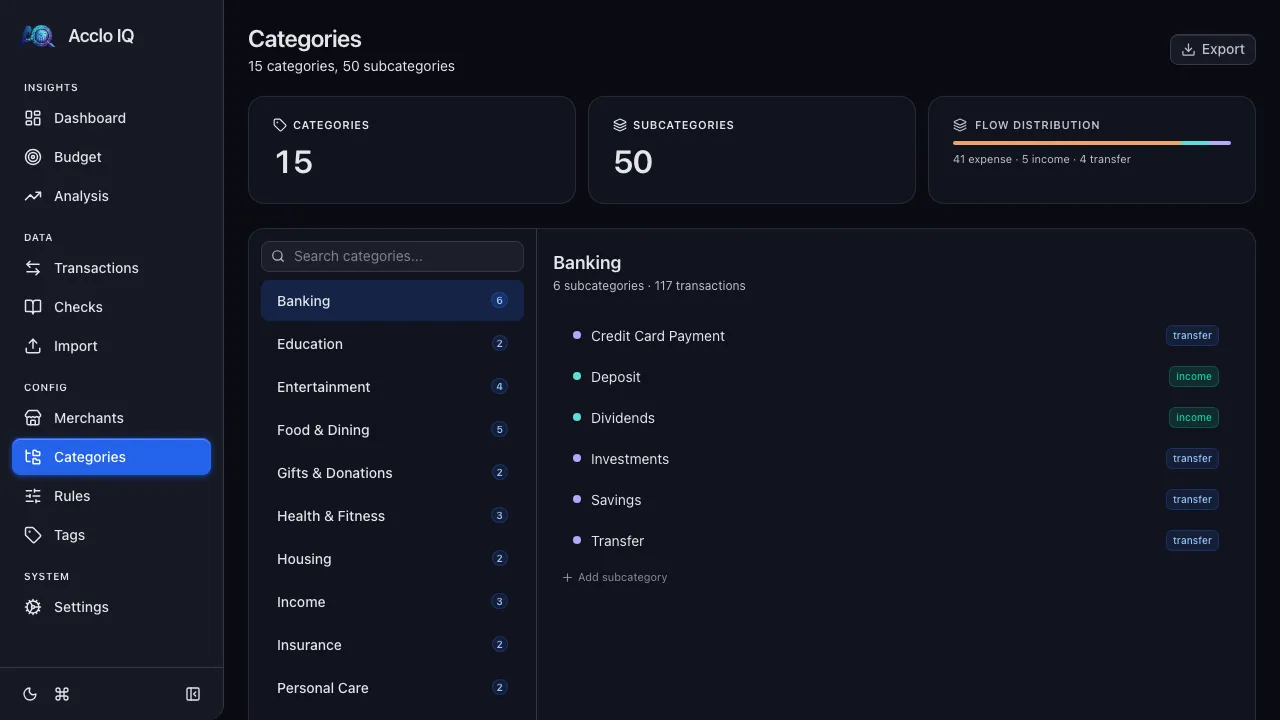
Creating a Category
Section titled “Creating a Category”- Click + Add category at the bottom of the category list (or press N)
- Enter a name and click Create
Renaming a Category
Section titled “Renaming a Category”- Click the category name in the right panel header
- Edit the name in the modal and click Save
Deleting a Category
Section titled “Deleting a Category”- Click the category name to open the rename modal
- Click the Delete button (red, left side of footer)
- Confirm the deletion
Deleting a category removes all its subcategories. Transactions that used the deleted category become uncategorized.
Managing Subcategories
Section titled “Managing Subcategories”Adding a Subcategory
Section titled “Adding a Subcategory”- Select a category in the left panel
- Click + Add subcategory below the subcategory list (or press N)
- Enter a name and select a flow type
- Click Create
Editing a Subcategory
Section titled “Editing a Subcategory”Click any subcategory row to open the edit modal:
- Name — rename the subcategory
- Flow Type — change between Expense, Income, and Transfer
Click Save when done.
Deleting a Subcategory
Section titled “Deleting a Subcategory”- Click the subcategory to open the edit modal
- Click the Delete button (red, left side of footer)
- Confirm the deletion
Transactions that used the deleted subcategory keep their parent category but lose the subcategory assignment.
Keyboard Shortcuts
Section titled “Keyboard Shortcuts”| Key | Action |
|---|---|
/ |
Focus the search box |
| Arrow keys | Navigate the category list |
| Enter / Space | Select a category |
| N | Add a new category or subcategory |
| E | Rename the selected category |
Default Categories
Section titled “Default Categories”On first launch, Acclo IQ seeds your database with a comprehensive set of default categories and subcategories covering common spending, income, and transfer types. You can rename, delete, or add to these at any time.
Impact on Other Features
Section titled “Impact on Other Features”Changing categories affects several other features:
- Rules — rules assign categories to transactions; deleting a category used by rules may cause future imports to become uncategorized
- Budgets — budgets are set per category or subcategory; deleting a budgeted category removes that budget target
- Dashboard & Analysis — breakdowns update immediately to reflect category changes
Related Guides
Section titled “Related Guides”- Rules Engine — auto-assign categories via regex patterns
- Transactions — manually categorize individual transactions
- Budgets — set spending targets by category
- Flow Types — detailed reference on expense, income, and transfer types