
Check Register — Paper Check Tracking
Overview
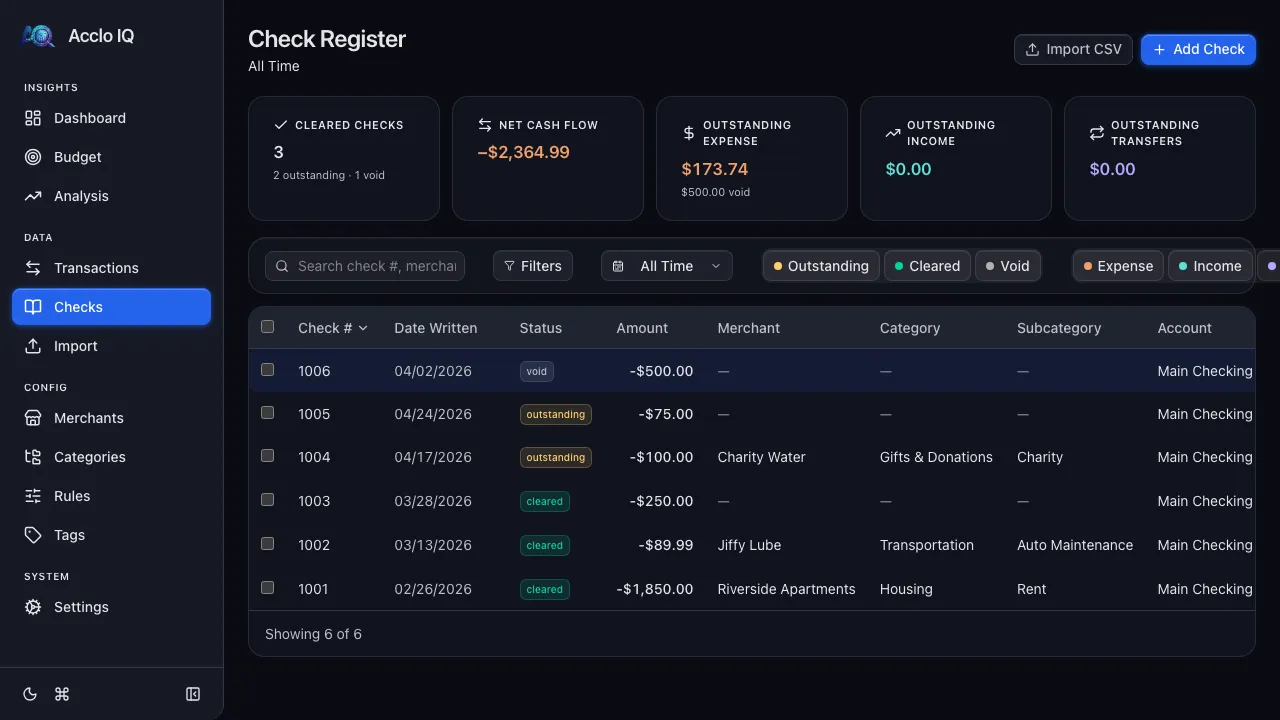
Section titled “Overview”The Check Register lets you track paper checks by number, merchant, and amount. When you import bank transactions, the app automatically matches cleared checks to their corresponding register entries and marks them as cleared.
Check Statuses
Section titled “Check Statuses”| Status | Meaning |
|---|---|
| Outstanding | Check has been written but not yet cleared at the bank |
| Cleared | Check has been cashed and appears in bank transactions |
| Void | Check was cancelled and should not be honored |
Adding a Check
Section titled “Adding a Check”- Click Add Check in the page header
- Fill in the required fields:
- Check Number — the number printed on the check
- Account — which account the check draws from
- Fill in optional details:
- Status — Outstanding (default), Cleared, or Void
- Flow Type — Expense (default), Income, or Transfer
- Date Written — when the check was written
- Amount — check amount
- Memo — notes about the check
- Merchant — who the check is payable to
- Category / Subcategory — spending classification
- Click Save
Automatic Matching
Section titled “Automatic Matching”When you import bank transactions (via CSV or Bank Sync), the app scans for check-related descriptions (e.g., “CHECK #1234”). If a match is found:
- The check register entry is marked Cleared
- The transaction inherits the check’s merchant, category, and subcategory
- A success message shows how many checks were matched
Importing Checks from CSV
Section titled “Importing Checks from CSV”- Click Import CSV in the page header
- Select the account
- Upload a CSV file with check data
- Map columns to fields: Check Number, Status, Amount, Date Written, Merchant, Category, Subcategory, Memo
- Preview the import and review any duplicates or errors
- Click Import to create the check entries
Exporting Checks
Section titled “Exporting Checks”Click Export in the toolbar to open the export modal. Choose CSV or Excel format to download all filtered checks.
Filtering and Searching
Section titled “Filtering and Searching”The toolbar provides:
- Search — filter by check number or merchant
- Filters — narrow by account, category, subcategory, or merchant
- Period — filter by date range
- Status pills — toggle Outstanding, Cleared, and Void
- Flow type pills — toggle Expense, Income, and Transfer
Bulk Actions
Section titled “Bulk Actions”Select checks using the checkboxes, then click Delete in the bulk action bar to remove them (with confirmation).
Related Guides
Section titled “Related Guides”- Transactions — view matched check transactions
- CSV Import — import bank transactions that match checks
- Categories — classify check payments