
Tags — Flexible Cross-Category Grouping
Overview
Section titled “Overview”Tags let you apply custom labels to transactions for grouping and filtering independent of the category hierarchy. Use tags for trips, projects, tax categories, shared expenses, or any cross-cutting dimension.
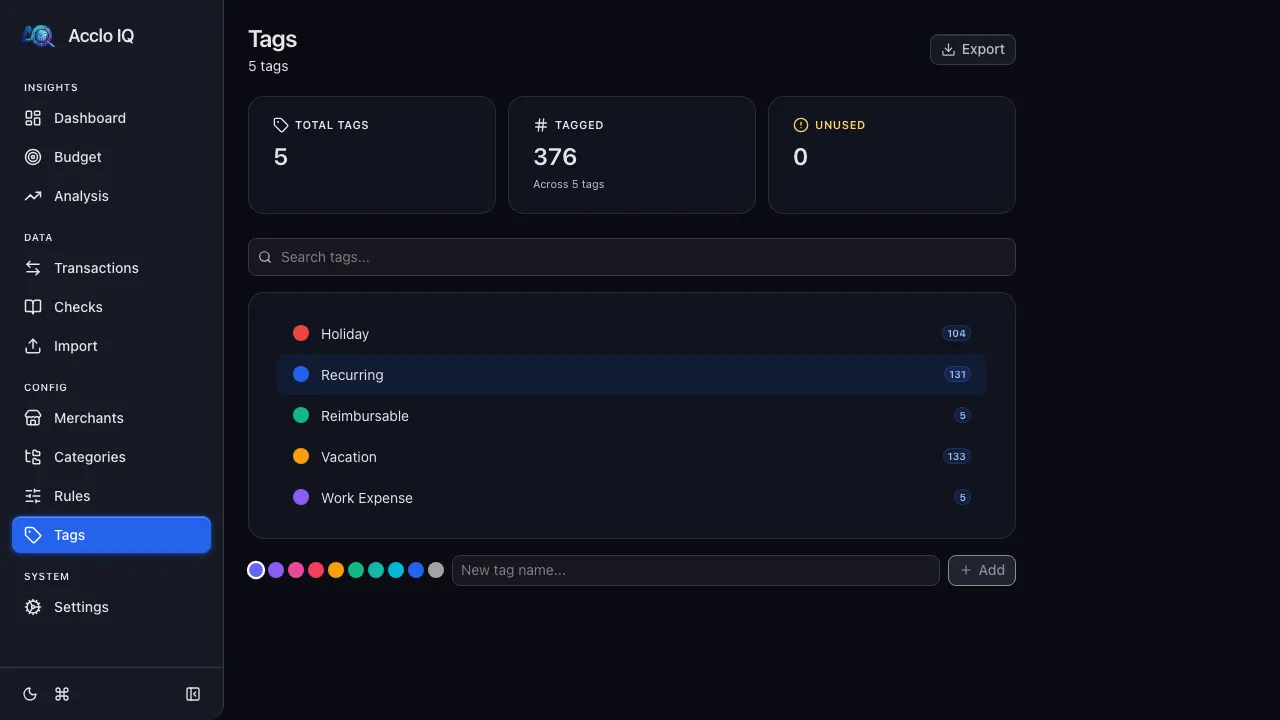
Tags vs. Categories
Section titled “Tags vs. Categories”| Feature | Categories | Tags |
|---|---|---|
| Structure | Two-level hierarchy (category > subcategory) | Flat list |
| Assignment | One primary per transaction (a split allocates across several) | Multiple per transaction |
| Purpose | Primary classification (what the money was for) | Secondary grouping (context, project, trip) |
| Required | Yes — one category, or multiple allocations when split | No (optional) |
Creating a Tag
Section titled “Creating a Tag”- Go to the Tags page
- At the bottom, choose a color from the 10-color palette
- Type a name in the input field
- Click Add or press Enter
Editing a Tag
Section titled “Editing a Tag”Click any tag row to open the edit modal:
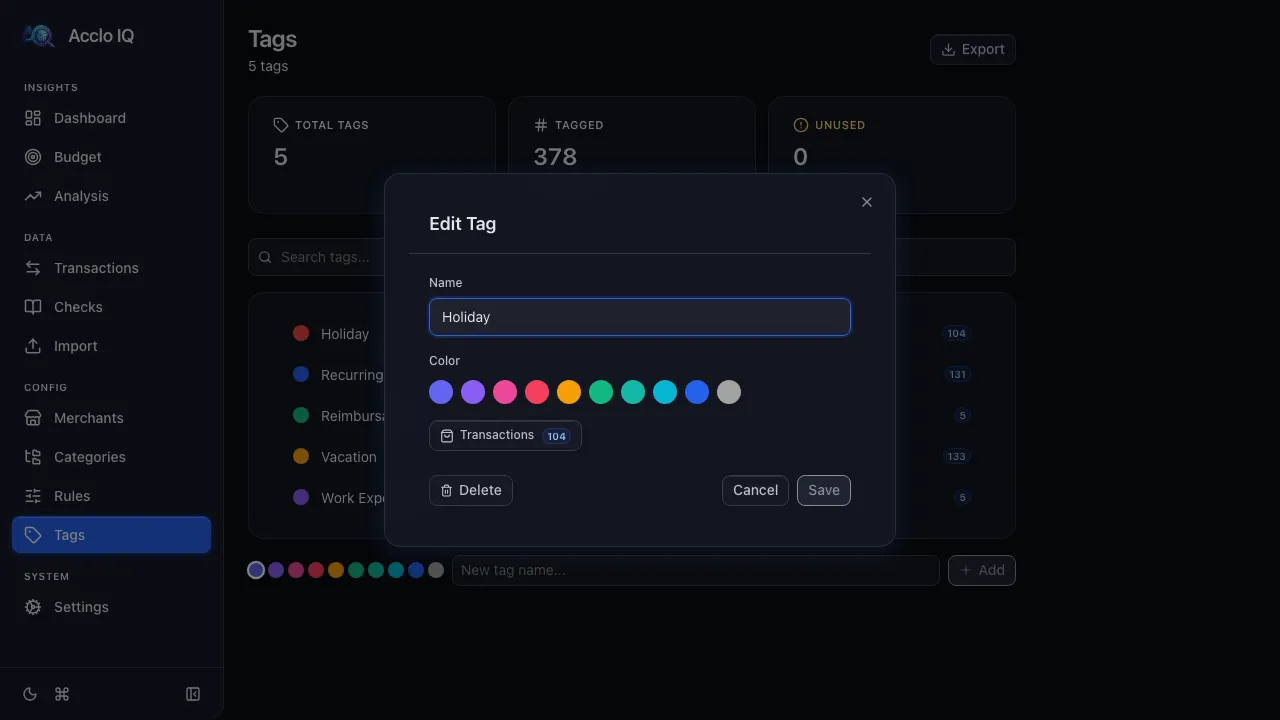
- Name — rename the tag
- Color — change the tag’s color
- Transactions — if the tag has transactions, click to view them on the Transactions page
Click Save when done.
Deleting a Tag
Section titled “Deleting a Tag”- Click the tag to open the edit modal
- Click the Delete button (red, left side of footer)
- Confirm the deletion
Deleting a tag removes it from all transactions. The transactions themselves are not affected.
Assigning Tags to Transactions
Section titled “Assigning Tags to Transactions”- Open any transaction on the Transactions page
- Click the Tags button (tag icon) in the detail panel action toolbar
- Check or uncheck tags in the tag picker — changes save automatically
Tags show as colored badges on the transaction row in the table.
Filtering by Tag
Section titled “Filtering by Tag”On the Transactions page, use the Filters drawer and select one or more tags in the Tag dropdown. Only transactions with the selected tags will be shown.
Summary Cards
Section titled “Summary Cards”The Tags page shows three stats at the top:
- Total Tags — how many tags you’ve created
- Tagged — how many transactions have at least one tag
- Unused — tags with zero transactions (warning color if > 0)
Related Guides
Section titled “Related Guides”- Transactions — assign tags in the detail panel
- Recurring — confirmed recurring charges use the system Recurring tag
- Categories — primary classification system